
Schedule exports and deliver them automatically
How to export orders, customers or scans on a schedule and send them by email, FTP, SFTP or S3.
You do not have to start exports by hand and download them. With a schedule, Eventbuddy creates them regularly and sends the file where you need it, for example to your accounting.
Set up a schedule
Open the schedules
In the sidebar, click Exports under Administration, then Export Schedules and New schedule. It is quicker from a table: in the Export menu, click Create recurring export.
What gets exported
Choose the Export type, for example orders, customers or scans, and the Format.
When it gets exported
Under Recurrence, choose the Frequency: Daily, Weekly or Monthly, plus the Weekday or Day of month. Under Run at and Timezone you set the time.
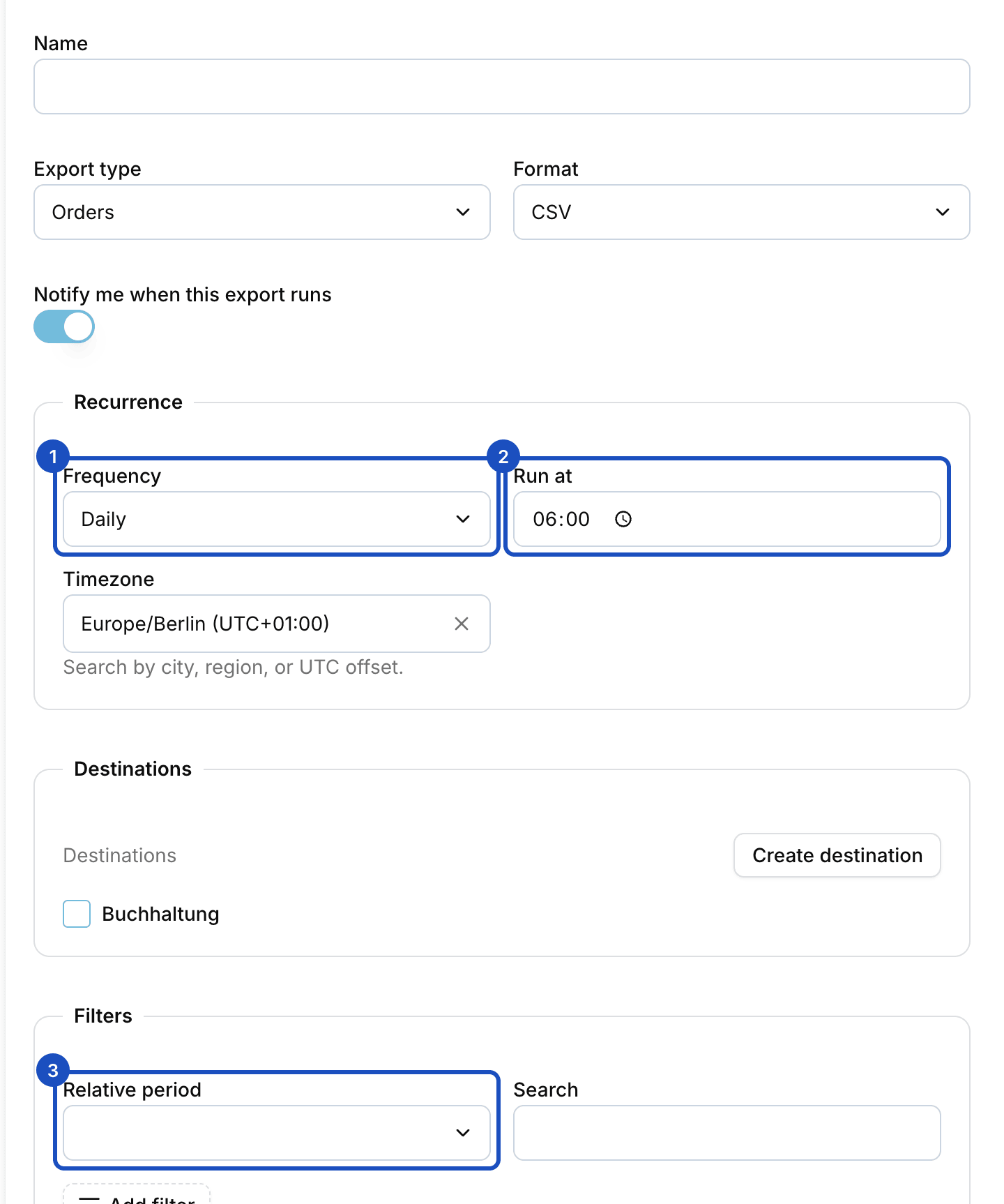
With a relative period you never have to adjust a date. Set filters and period
Under Filters you use the same filters as in the table. With a Relative period such as Previous day, Previous week or Previous month, every delivery contains exactly the last period.
Choose destinations
Under Destinations, choose where the file goes. If there is no destination yet, create one right here with Create destination: by Email with the recipients, or by FTP, SFTP or S3 with the access details. Eventbuddy stores credentials encrypted.
Save
Click Save. From now on the export runs by itself. If Notify me when this export runs is on, you hear about every run.
You find all destinations later under Exports > Export Destinations.

Good to know
Where do I find the created files?
Every run appears on the Exports page with its status. You can also download the file there as long as it has not expired.
What happens if a run is missed?
Eventbuddy catches up on a missed run once and then continues with the next one. You do not get a pile of duplicate files.
How safe are the links in the email?
The link in the email is a temporary, signed link. Eventbuddy also attaches small files to the email, within a size limit.
Can I schedule every export?
Almost every one. Declines and invitation codes belong to a single event and can only be exported once.