
Export data as CSV or Excel
How to export orders, tickets, customers and other tables as CSV or Excel and find large exports again later.
You can download almost every list in the admin as a file, for example for your accounting or an attendee list. The export contains exactly the rows you have filtered.
Export a table
Filter the list
Open the list, for example Orders, and narrow it down, say to one event or a period. How to do that is explained in Filter tables.
Choose Export
Above the list, click Export. Choose the format: CSV for other programs, Excel to open it directly. For orders, you also choose whether you export the orders or the single tickets. Some of these menu entries currently show in German in the English admin.
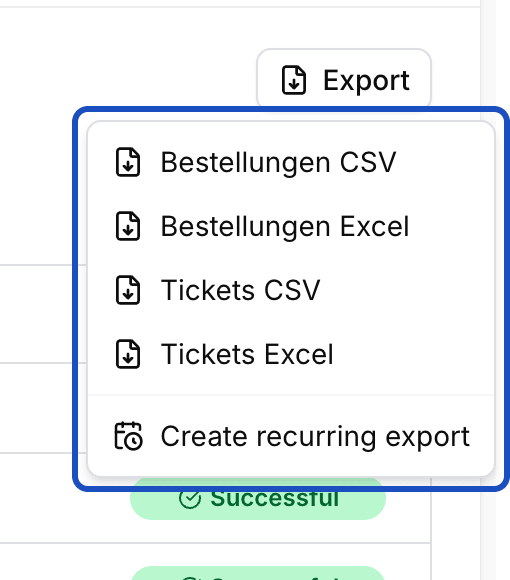
Orders have two exports: one per order and one per ticket. Download the file
Your browser downloads small exports right away. Larger ones are created by Eventbuddy in the background. You are then taken to the Exports page and can keep working.
You find the Export button on Orders, Customers, Guest lists, Vouchers, Payments and Installment payments, in the Event Cockpit for the scans, on an event's declines and on the invitation codes.
Pick up large exports
Open Exports
In the sidebar, click Exports under Administration. You see the exports with type, format, status and who requested them.
Check the status
Queued and Generating mean the file is not ready yet. At Completed it is ready.
Download
Open the menu at the end of the row and click Download.

Good to know
An export failed. What now?
Open the menu of the row and click Retry. If it fails again, write to us and name the export you requested.
Does the export keep my sorting and search?
Yes. The list's filters, search and sorting also apply to the file.
Can I get an export automatically every week?
Yes. The Export menu has Create recurring export. How it works is explained in Schedule exports and deliver them automatically.