
Set up invoices and e-invoicing
How to set the payment term, an invoice email for your accounting and number ranges, and store the routing ID for e-invoices.
Eventbuddy writes an invoice for every ticket order. Here you set how long your customers have to pay, whether your accounting receives every invoice automatically and how the invoices you write yourself are numbered.
Before you start
You need a role with access to the settings, for example Admin.
Set the payment term and invoice email
Open the invoice settings
At the bottom of the sidebar, click the name of your organizer and then Settings. Open the Invoice settings tab.
Enter the payment term
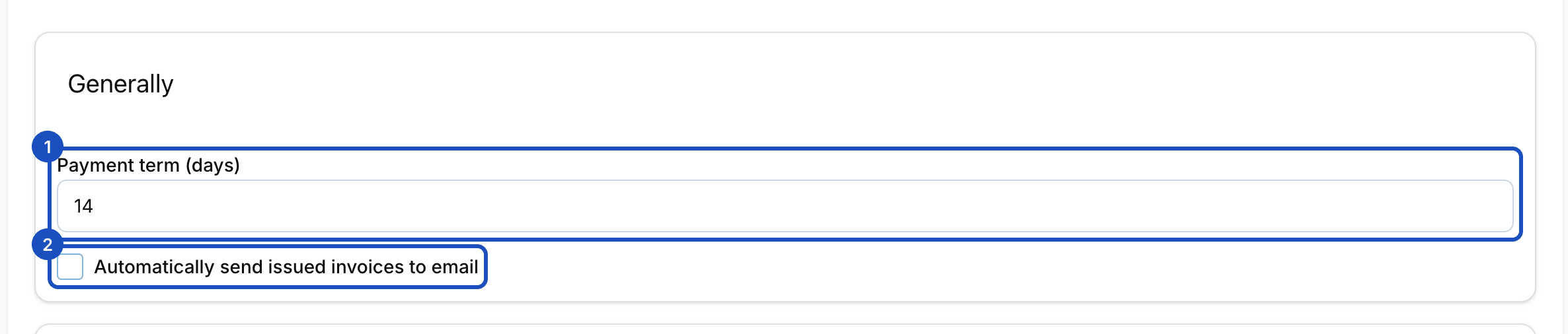
Under Payment term (days), enter how many days your customers have. This applies, for example, to orders with pay on account and to subscription invoices.
Send invoices to your accounting
Check Automatically send issued invoices to email and enter your accounting's address under Invoice email. From now on, every issued invoice and every cancellation invoice also goes to this address.
Save
Click Save at the bottom.
Adjust number ranges
The number ranges apply to invoices you write yourself, cancellation invoices, order confirmations, quotes and credit notes. Invoices for ticket bookings have their own fixed number range that you can't change.
Unlock
Next to Number ranges, click Unlock and confirm the warning. Only change number ranges after talking to your tax advisor, so the numbering stays without gaps.
Set the format
Enter the format for each type, for example
RE-{YYYY}-{SEQ}for RE-2027-0001. Under Begin you set the first number, under Padding the length of the sequence number. Save each row on its own.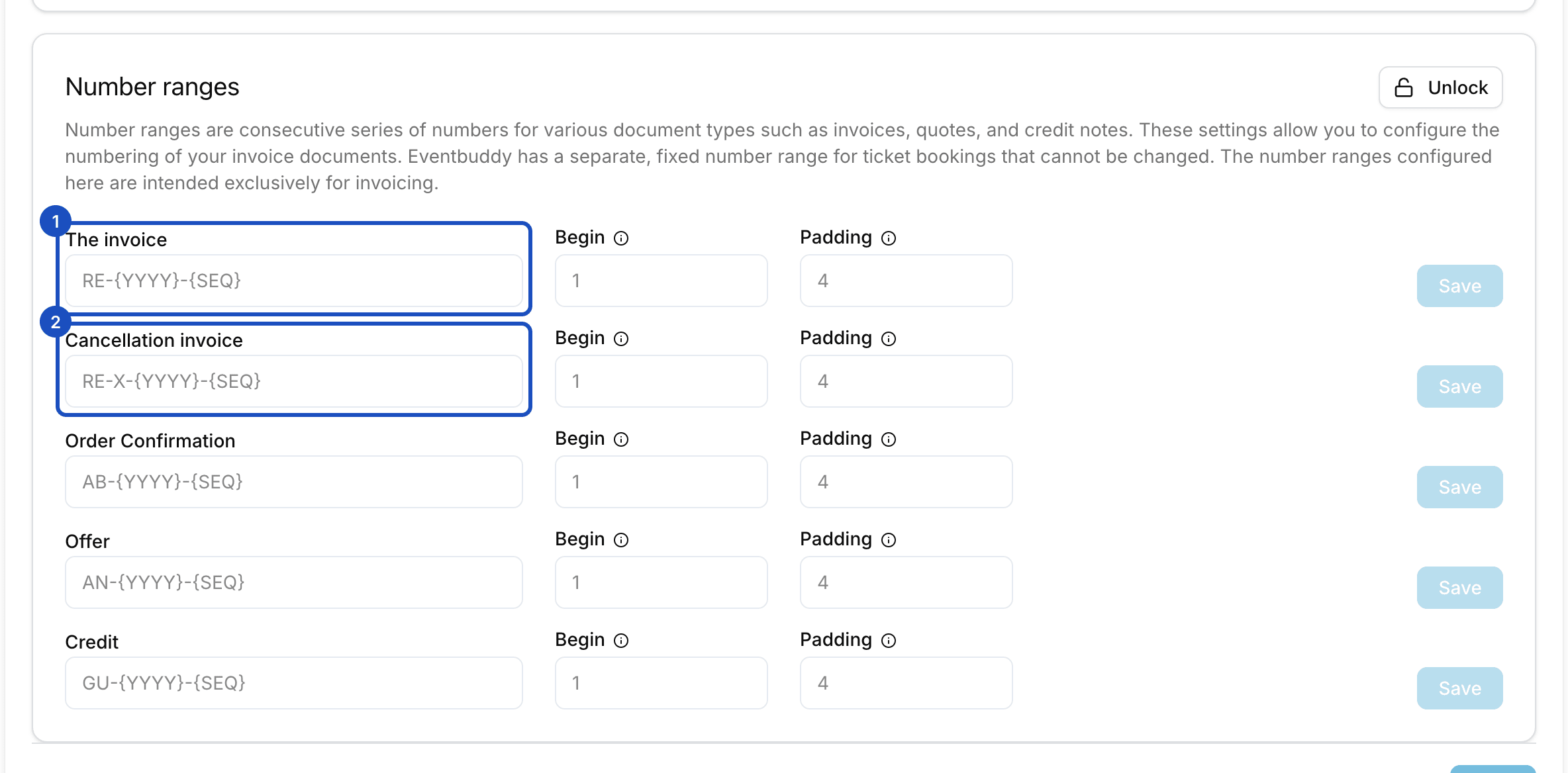
If {SEQ} is missing from the format, Eventbuddy adds the sequence number automatically.
| Placeholder | Meaning |
|---|---|
{YY} / {YYYY} | Year, two or four digits |
{MM} | Month, two digits |
{CU} | Customer number |
{SEQ} | Sequence number |
Store the routing ID for e-invoices
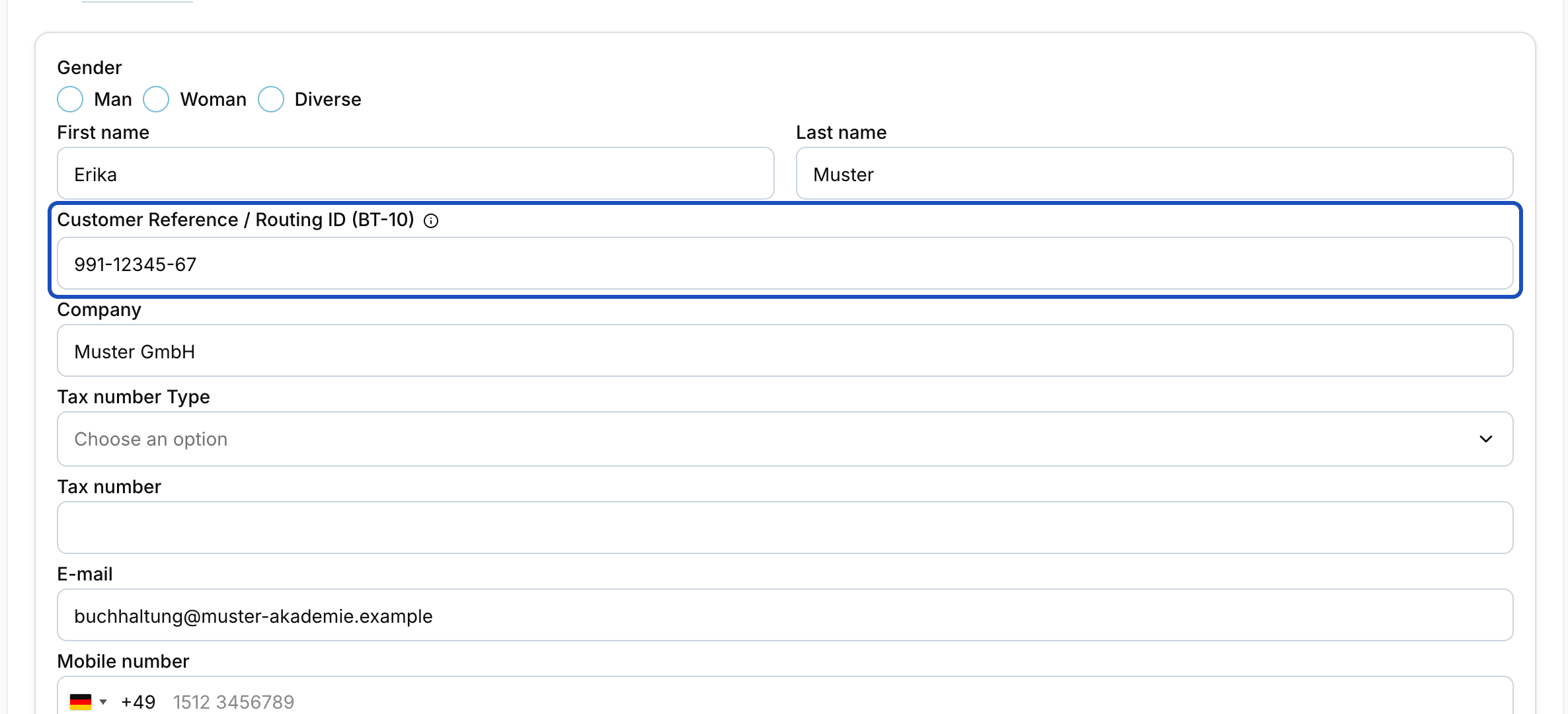
Schools, authorities and other public buyers often require a routing ID (Leitweg-ID). Under Administration > Customers, open the customer and click Edit. Enter the ID under Customer Reference / Routing ID (BT-10) and save. Without an ID of your own, Eventbuddy sets one itself.
Good to know
Which formats does the e-invoice come in?
On an invoice's page, Download offers three formats: PDF, E-Invoice (PDF) with embedded invoice data and XRechnung (XML). The page is available once Eventbuddy has switched on invoice writing for you.
Where do I set reverse charge?
For invoices you write yourself, choose the Type of taxation under Taxation, for example Reverse Charge (B2B within EU). The article on writing invoices has more.