
Read and save your dashboard
How to set the period, events and widgets on the dashboard and save your view for yourself or your team.
The dashboard is the first page after you log in. It shows your sales in widgets, for example Total Sales, Sales by date or Sold / quota. You choose which period and which events you see, and save views you need often.
Choose period and events
Set the period
At the top, choose a Period, for example Last 30 days or This year. With Custom you enter the start and end yourself.
Narrow down the events
Under Events, choose one or more events. Without a selection, the dashboard counts all your events.
Choose a grouping
Under Group by, you split the numbers by Event, Ticket type or Sales Channel.

All widgets follow the same filter bar.
Adjust the widgets
- Add and remove: click Widgets and choose what you want to see. To remove one, hover over a widget and click the cross at the top right.
- Arrange: drag a widget by the handle at the top right to another place.
The browser you are working in remembers your selection. On another device you see the default view again until you choose a saved view.
Save a view
Set up the view
Set the period, events, grouping and widgets the way you need them, for example for a weekly overview.
Save the view
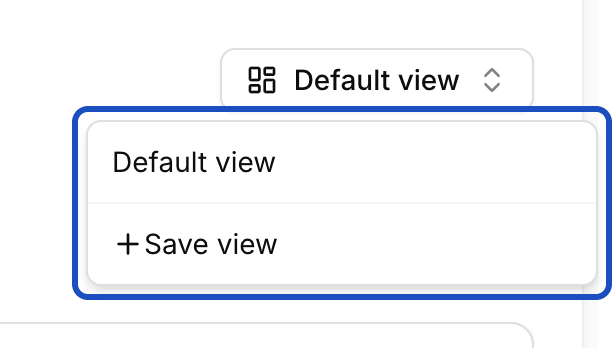
At the top right, open the menu with the current view. At first it is called Default view. Click Save view.
Choose name and visibility
Enter a Name. Under Visibility, choose Private, so only you see the view, or Team, so everyone in your team sees it. Click Save.
Team views carry a Team badge in the list.
From now on you pick the view in the same menu with one click. On your next visit, Eventbuddy opens the view you chose last.
Good to know
Can I change a colleague's view?
No. Only the person who saved a view can rename or delete it. You can Duplicate a team view from the menu next to it and adjust the copy for yourself.
What does Live next to the title mean?
Live means your browser is connected to the internet. If it says Offline, the connection is gone and the numbers may be out of date.
Who sees the dashboard?
Everyone with a role that may display the dashboard, for example Admin. The Scanner role does not see it.