
Tickets in Apple Wallet and Google Wallet
Where your guests add their tickets to their wallet, what the pass shows and when it updates by itself.
Your guests can save every ticket in Apple Wallet or Google Wallet. At the door, they then show their phone. You don't need to set anything up: the buttons come with every order.
How your guest adds a ticket to their wallet
Open the order
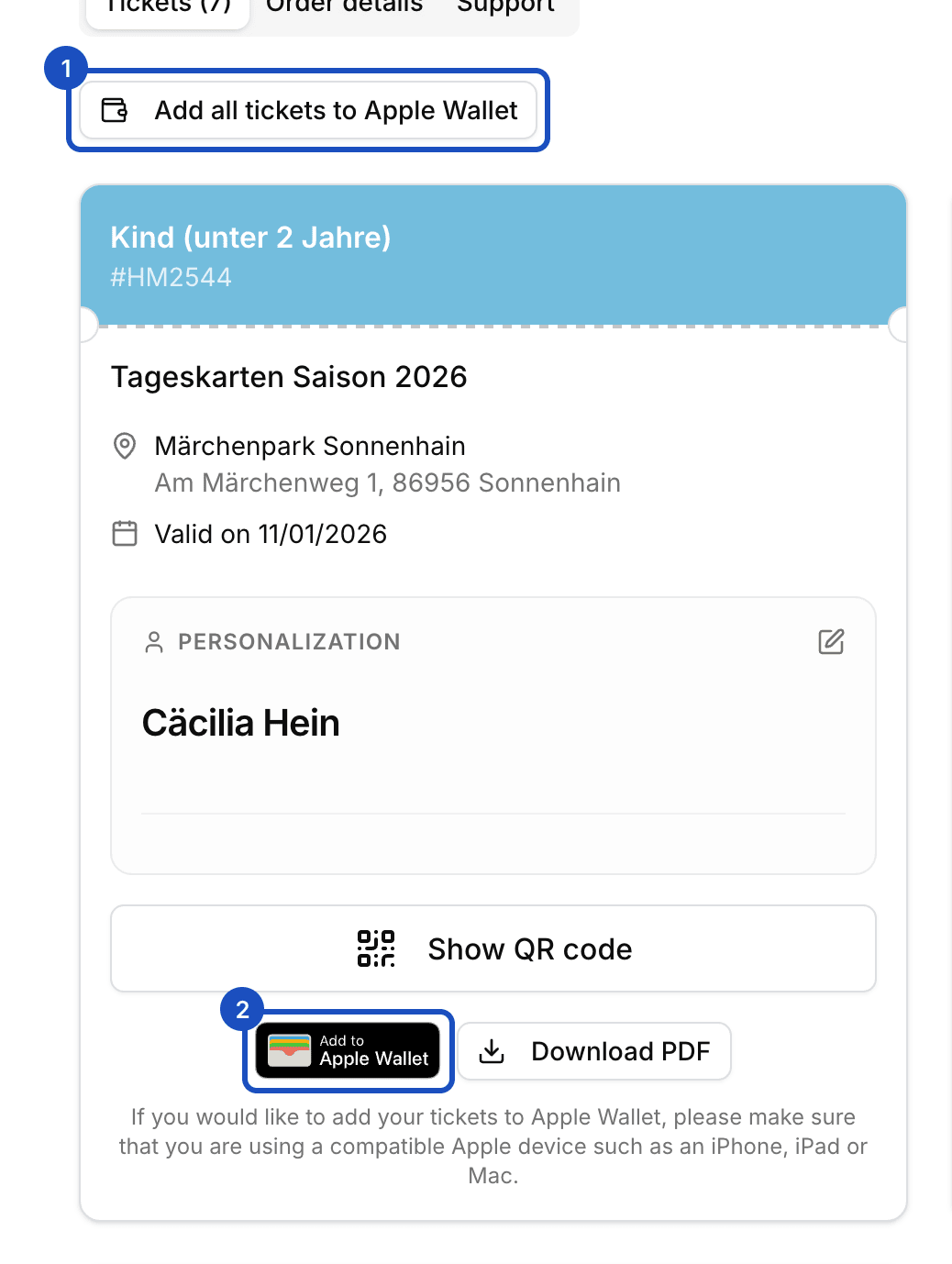
After buying, your guest receives an email with the Show tickets & order button. It leads to the page of their order with all tickets.
Tap the button
Below each ticket are the buttons for Apple Wallet and Google Wallet and the button for the PDF. On an iPhone, only Apple Wallet appears; on an Android phone, only Google Wallet.
Save all at once
If the order has several tickets, the buttons Add all tickets to Apple Wallet and Add all tickets to Google Wallet appear above them.
Guests from your guest list find the same buttons on the page of their invitation.
What the pass shows
The pass shows the event, date, admission, venue, ticket type and the QR code you scan at the door. It uses the event's cover image and your logo. Its language follows your guest's language.
When the pass updates
Saved passes stay up to date. Eventbuddy updates them when you, for example:
- change the event's date, admission, title or cover image,
- change the venue or its address,
- change a ticket's guest name or validity date.
When the date or admission changes, your guest gets a notification on their phone. After a valid scan at the door, the pass shows the check-in time.
Good to know
Can I download a wallet pass myself?
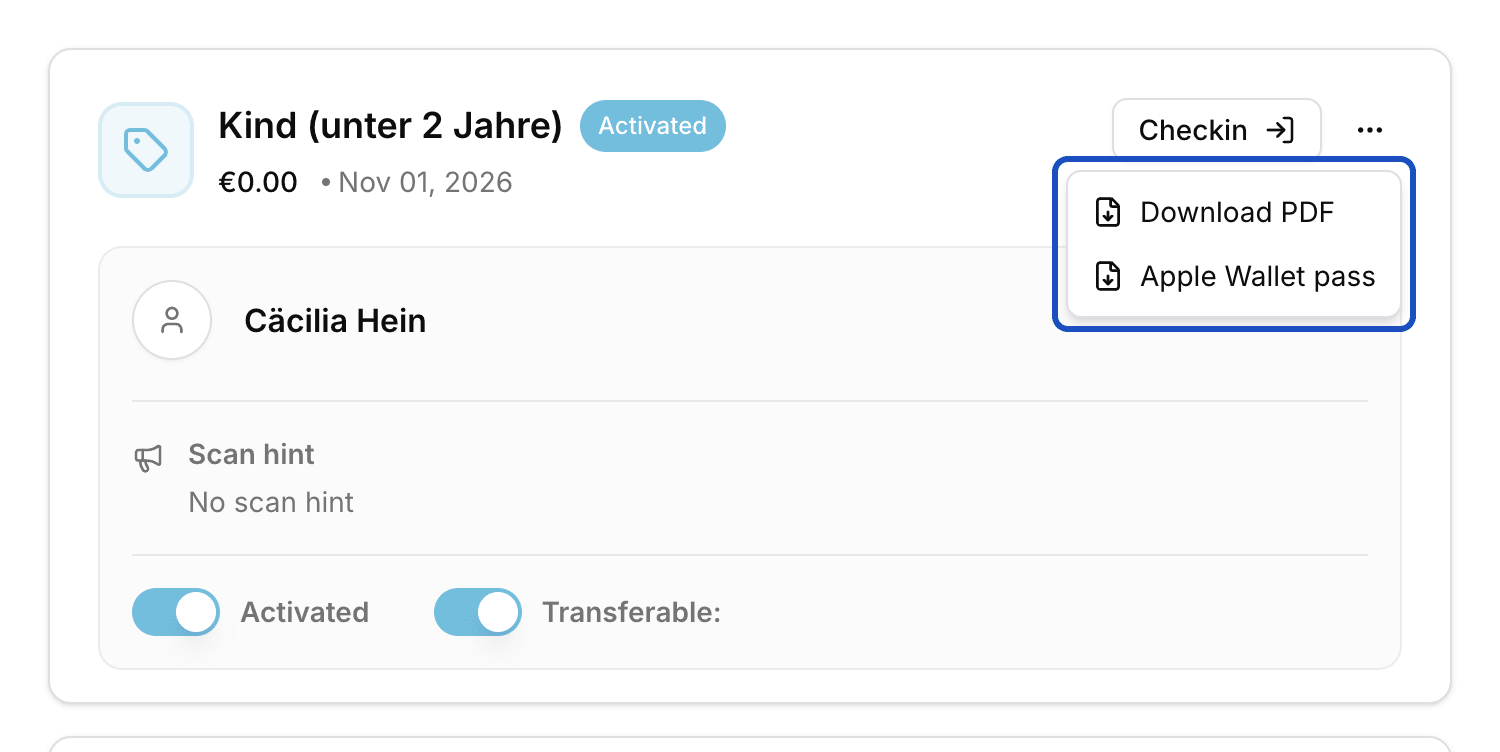
Yes. Open the order in the admin and click the menu next to the ticket. There you find Download PDF, Apple Wallet pass and Google Wallet pass. That way you can also send a guest their pass yourself.
Do guests need a wallet?
No. The QR code on the PDF ticket works the same way. The wallet is just more convenient, because the ticket is on the phone without searching for it.