
See who has arrived
How to follow live in the Event Cockpit how many guests have checked in, by entrance or ticket type, and export the scans.
In the Event Cockpit you see during your event how many guests have already checked in and at which entrance. This shows you where a queue is building up and when to open a second entrance.
Open the Event Cockpit
Go to the cockpit
In the sidebar, click Admission under On site, then click Cockpit at the top right.
Filter for your event
Click Filter, choose Event and then your event. In the same way you narrow it down to a Ticket type, a Scan List or a period under Created on.
Choose a grouping
Under Group by, you split the numbers: by Ticket type, by Scan List, that is by entrance, or by Scanner, that is by the person who scanned.
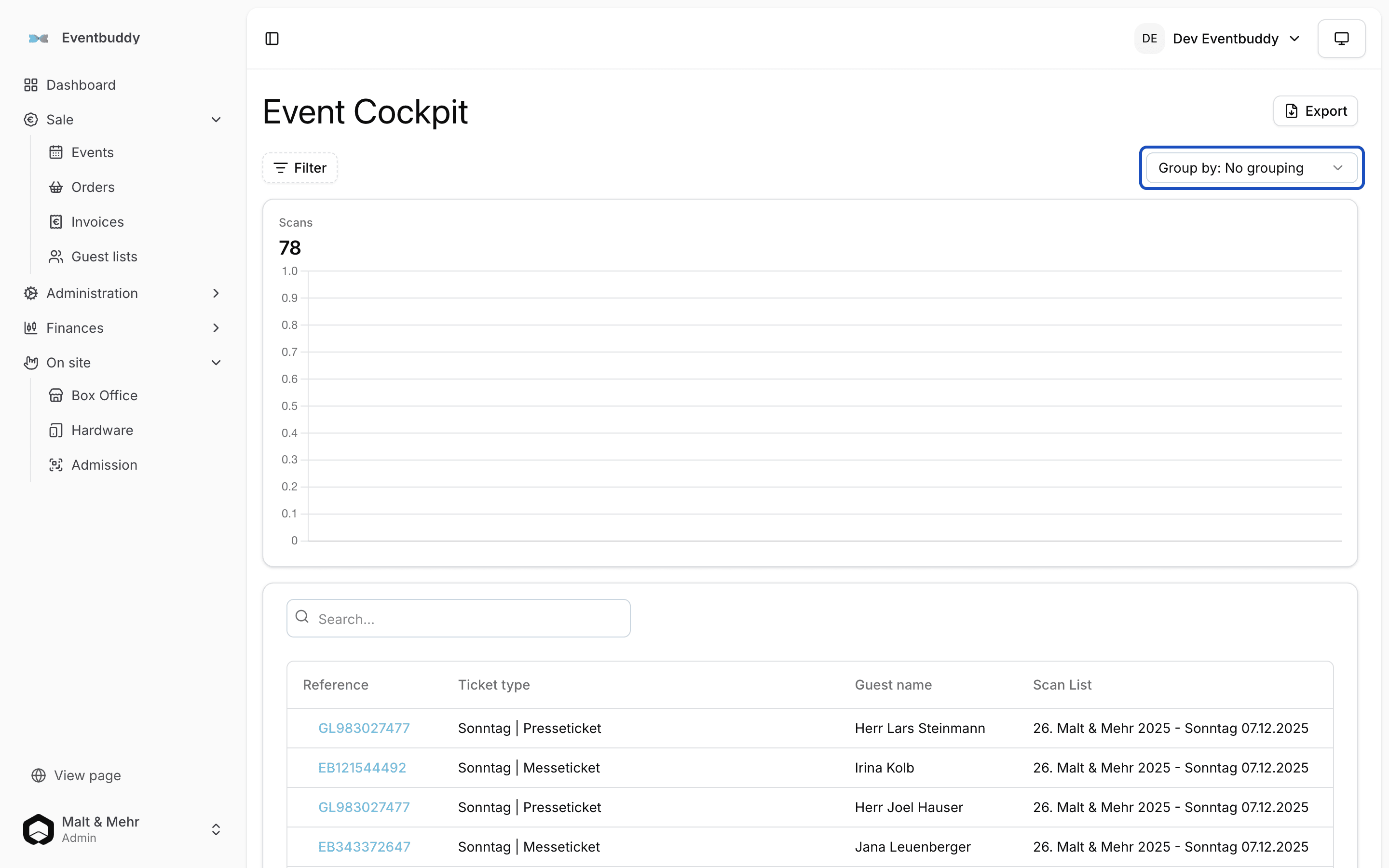
Grouped by scan list, you see a separate count and curve for every entrance.
At the top are the counts, below them the scans over time. The table lists every scan with guest name, ticket type, scan list, scanner and time. Clicking the Reference opens the order or the guest list.
Export the scans
Open the export
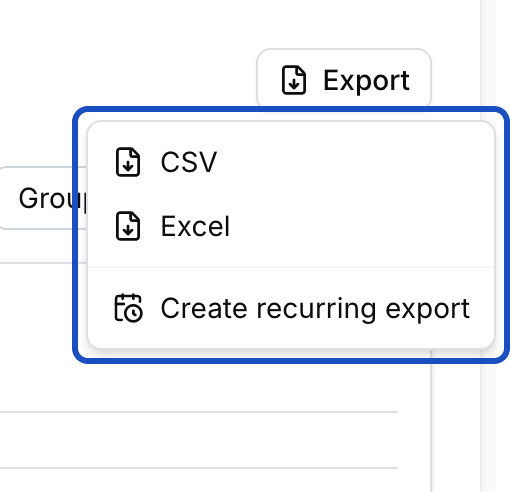
Click Export at the top right and choose CSV or Excel.
Download the file
Your browser downloads small exports right away. Larger ones are created by Eventbuddy in the background. You then find them under Administration > Exports.
The export contains the scans that are currently filtered: every scan with scan list, scanner, time and result, including the rejected ones.
Good to know
Do I have to reload the page?
No. The cockpit updates itself every few seconds. Just keep it open during admission.
Can I get the scan export regularly?
Yes. The Export menu has Create recurring export. How it works is explained in Schedule exports and deliver them automatically.