
Create a discount code
How to create a discount code, limit it to events, uses and a date, and see who used it.
With a discount code, your guests get a fixed amount or a percentage taken off at checkout. You decide which events it applies to, how often it can be redeemed and until when.
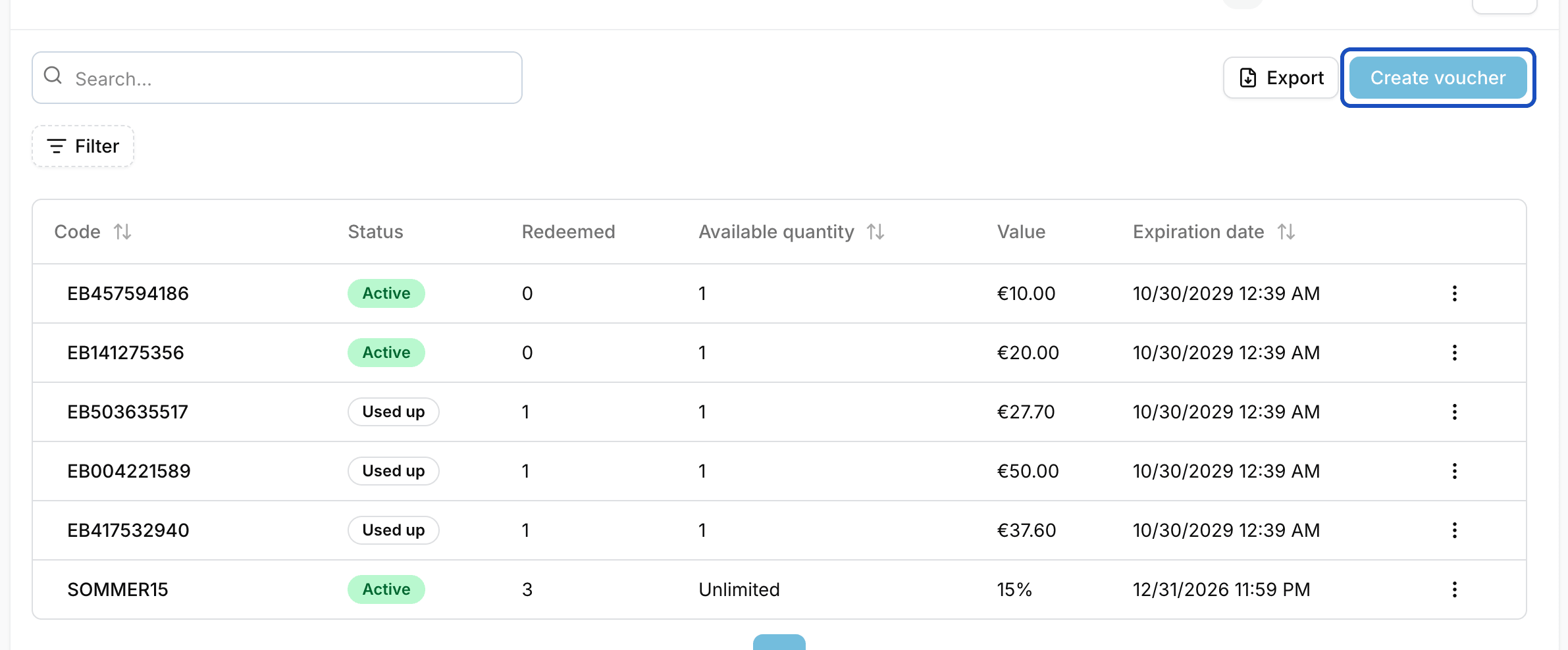
In Eventbuddy, discount codes are called Vouchers. You find them in the sidebar under Administration.
Create a discount code
Create a voucher
Open Vouchers and click Create voucher.
Set the code
Under Code, enter what your guests should type, for example
FALL10. Eventbuddy stores the code in capital letters. Each code can only exist once.Enter the discount
For a fixed amount, enter it in euros under Absolute value. For a percentage, use Relative value, for example 10 for 10%.
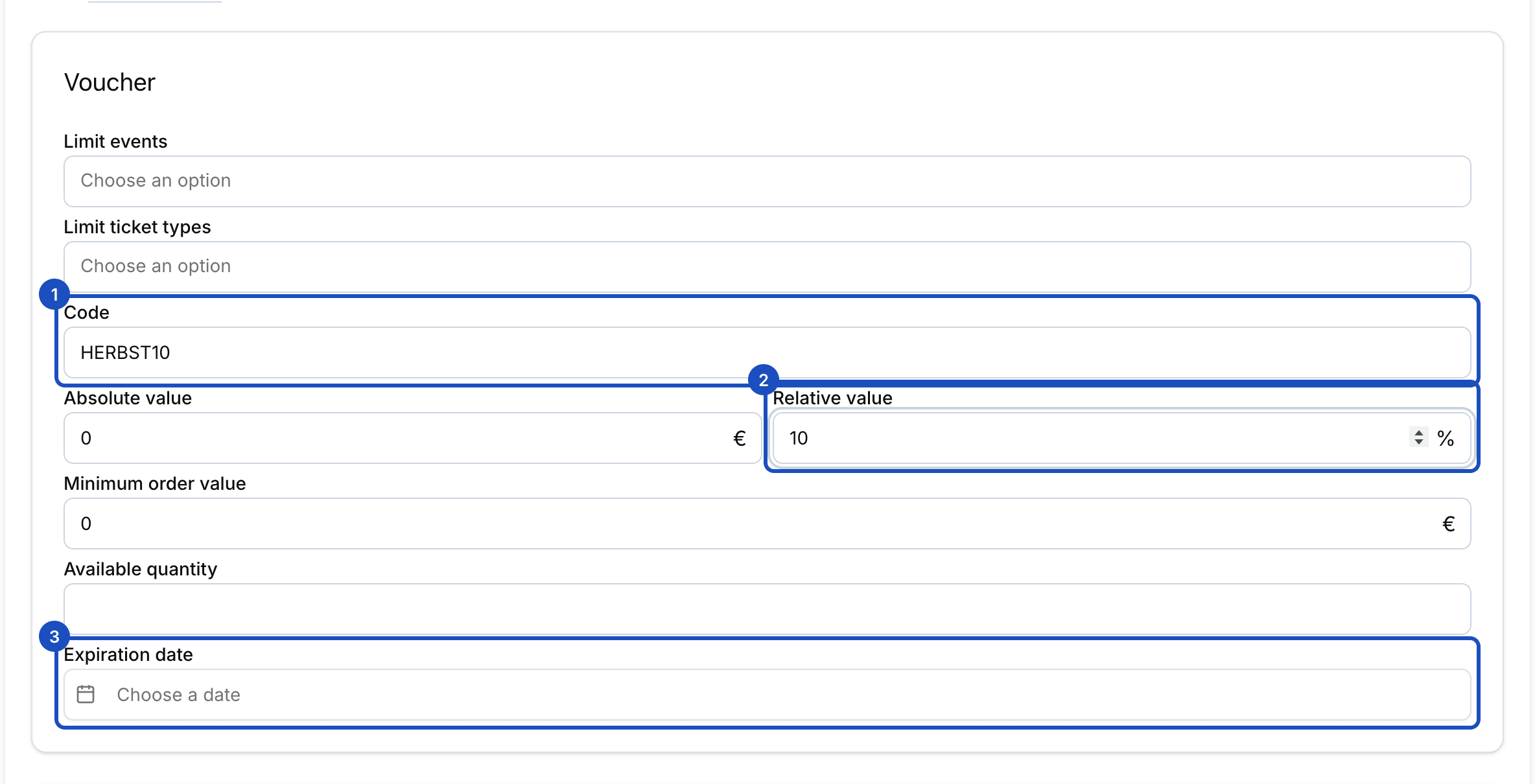
Code, discount and expiration date: that is all a simple discount code needs. Set limits
All fields here are optional. Empty means no limit.
- Limit events: the code only works for the events you select. Without a selection, it works for all your events.
- Limit ticket types: the code only works for certain tickets, for example only the day ticket.
- Minimum order value: the code only applies from this order value.
- Available quantity: how often the code can be redeemed in total. Set it to 1 for a single-use code.
- Expiration date: the last day the code is valid.
Save
Click Save. The code works right away. Your guests enter it at checkout under Redeem voucher.
Many single-use codes at once
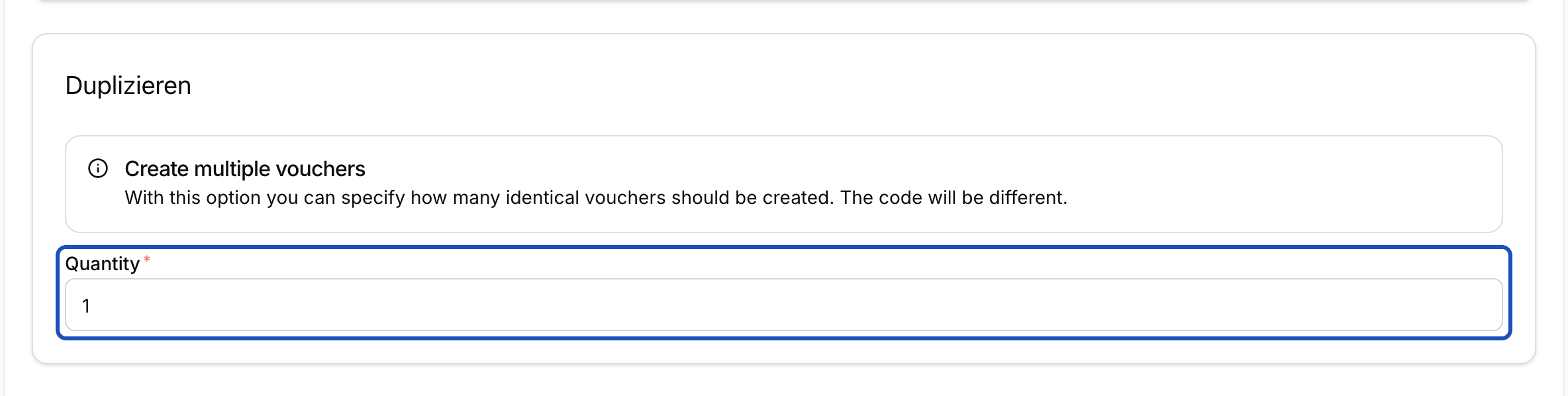
If you need a separate code for every partner or person, you don't have to create each one by hand. In the Create multiple vouchers box, enter under Quantity how many identical vouchers you need, up to 100 at once. They all get the same settings and each gets its own code.
See who used the code
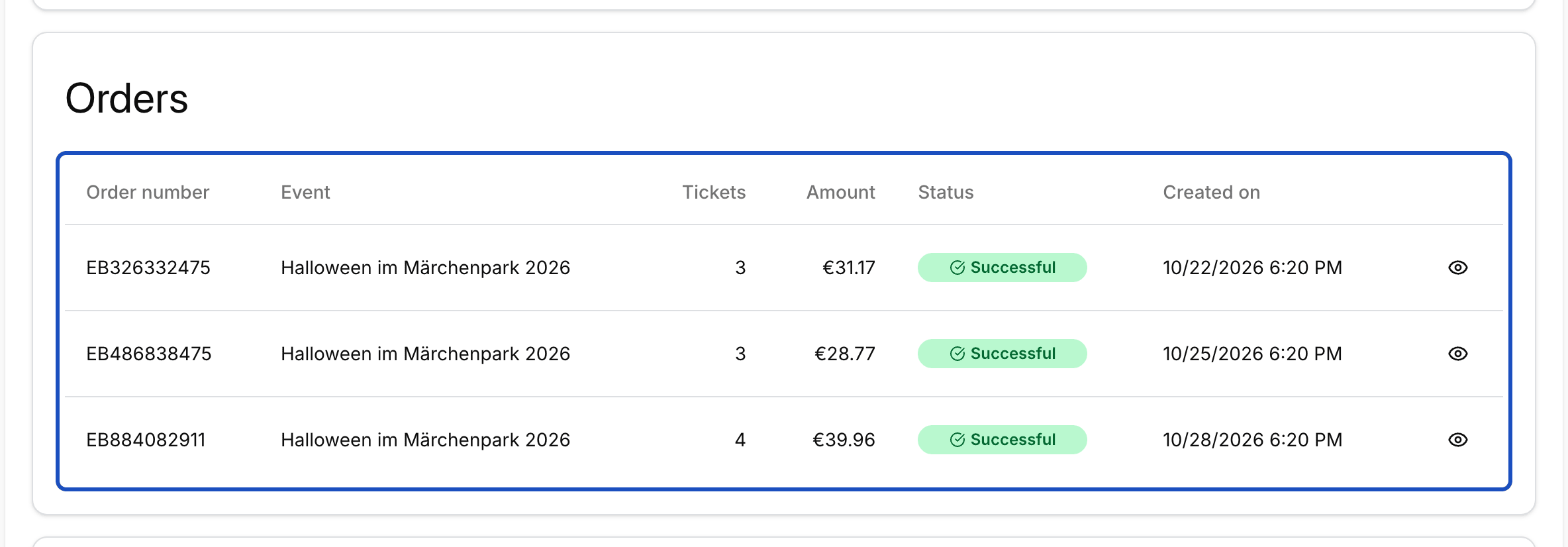
Click a voucher in the list. Its detail page shows its settings and every order in which it was redeemed.
Good to know
How do I keep track of many codes?
Give vouchers one or more Tags in the Grouping section, for example "Partner" or "Summer campaign". The Description there is only for you and your team. Your guests never see it.
Can I change a code later?
Yes. Open the voucher and click Edit. This is how you extend the expiration date or raise the quantity, for example.
Can I export the vouchers?
Yes. Above the list of vouchers, click Export and choose CSV or Excel. The export contains the vouchers that are currently filtered, for example only those with a partner's tag.