
Filter tables
How to narrow down orders, customers, guest lists and other tables with several conditions.
Every table in the admin has a filter bar above the list. Use it to build exactly the list you need right now, for example all orders over €50 that are not cancelled.
Add a filter
Click Filter
Click Filter above the table. You see a list of the fields you can filter by. Use Filter by … to search it.
Choose a field and a condition
Pick a field, for example "Status" or "Amount", and then the condition. Which conditions exist depends on the field, see the table below.
Enter a value
Enter the value. The table updates right away, there is nothing to confirm.
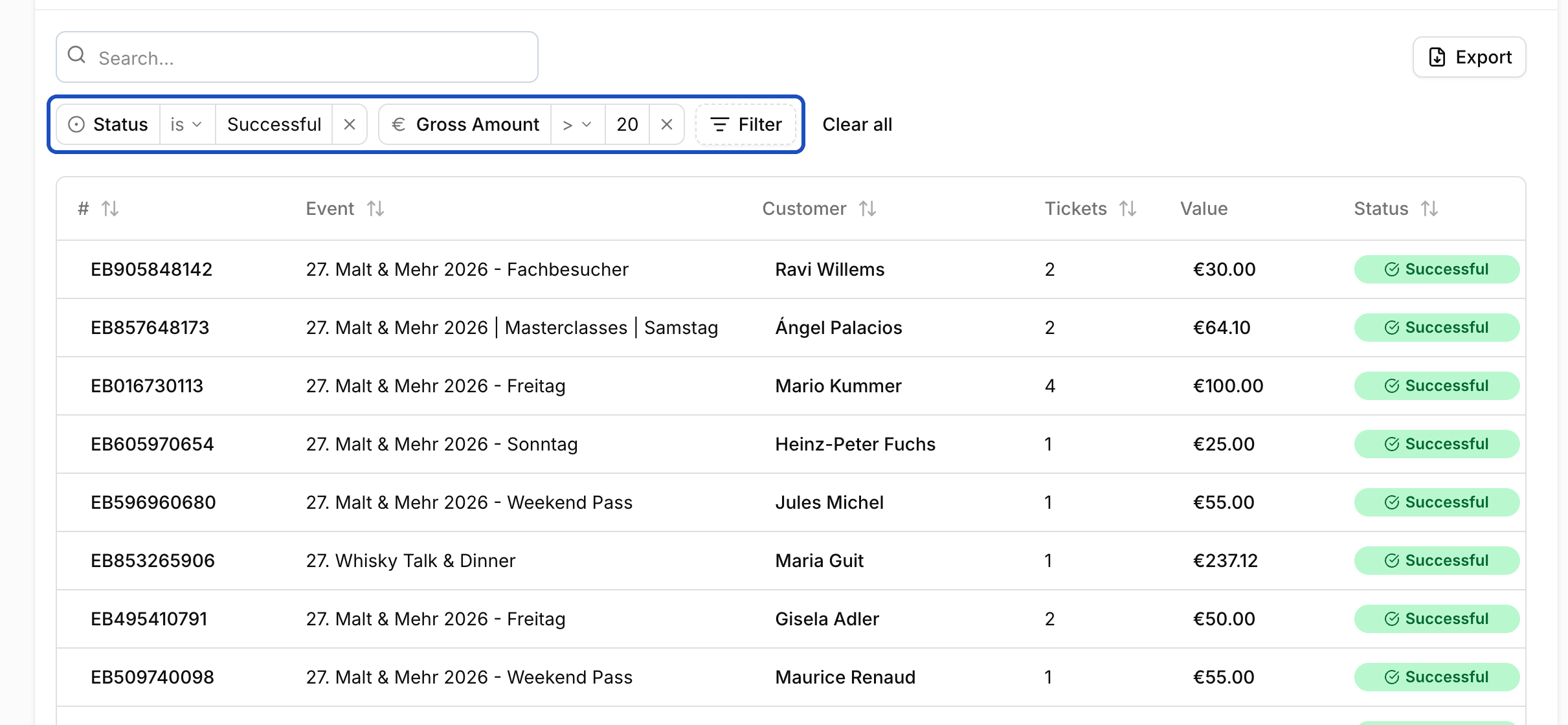
Every condition appears as its own chip above the table.
Click the cross on a chip to remove that condition. Clear all removes every condition at once.
Which conditions exist
| Field type | Conditions |
|---|---|
| Choice, for example status or event | is any of, is none of |
| Text | contains, does not contain, is |
| Number, for example amount | =, >, <, between |
| Date | on, before, after, between |
| Yes or no | is |
Several conditions
You can combine as many conditions as you like. They always all apply at once ("and"). There is no "or" between conditions. For "status paid or open", pick several values in one field with is any of instead.
Good to know
Can I share a filtered list with my team?
Yes. The filtered view is stored in the page address. Copy the link and your team sees the same list. The filters also stay when you reload the page.
Does the export respect my filters?
Yes. Exports contain exactly the rows you filtered.