
Offer installments
How to create an installment plan, offer it for an event and see which installments are open or overdue.
For expensive tickets, such as a training course over several months, your guests can pay the price in installments. Eventbuddy charges the installments automatically and reminds your guests beforehand. You as the organizer grant the installments yourself; Eventbuddy is not the lender.
Before you start
Eventbuddy switches installments on for you. Write to us if you want to use them. You then see Installment payment plans in the sidebar under Finances.
Create an installment plan
Create a plan
Under Finances, open Installment payment plans and click Create.
Set the installments
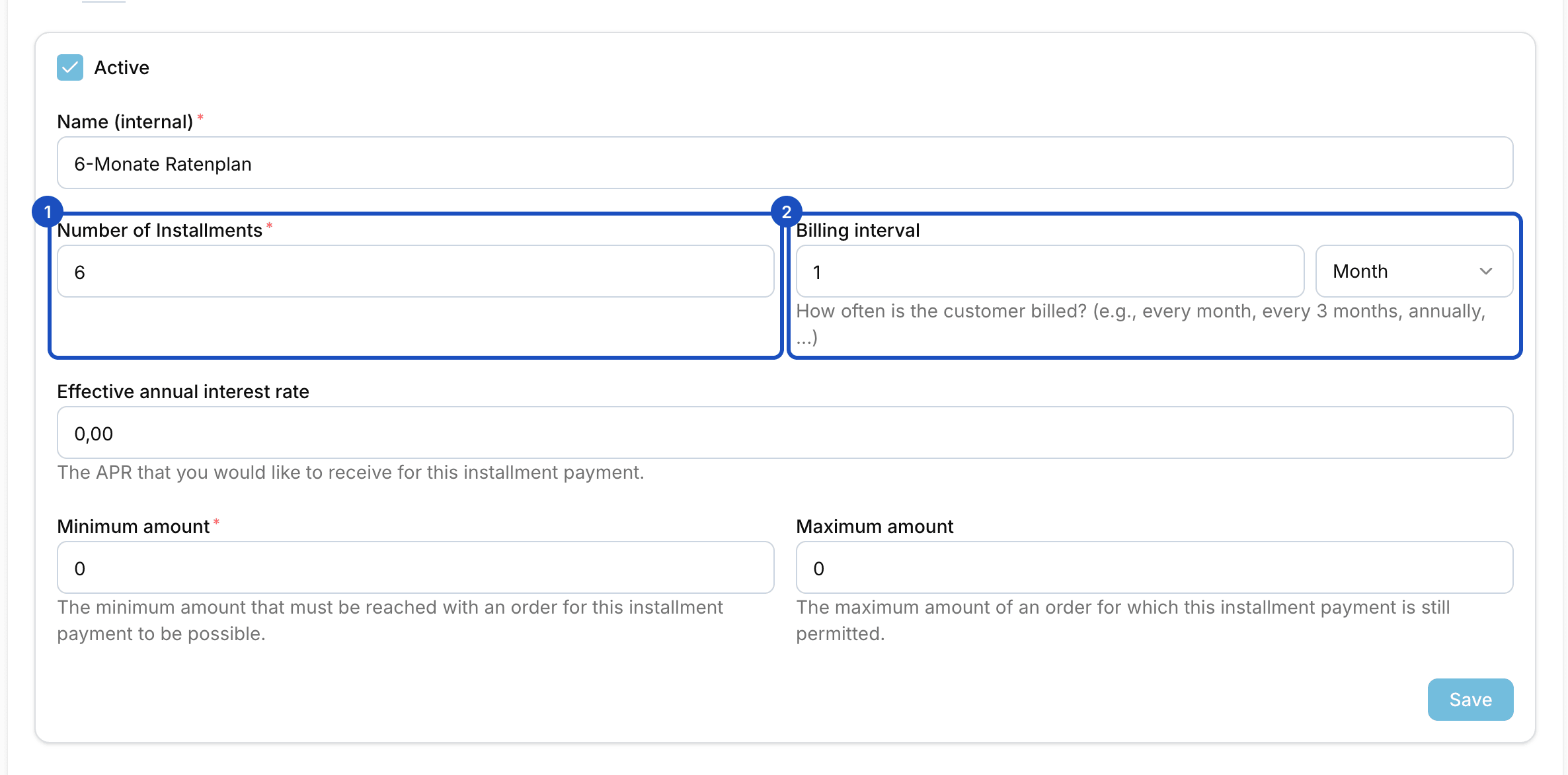
Give the plan a name under Name (internal), for example "6 monthly installments". Enter the Number of Installments (2 to 24) and, under Billing interval, how often a payment is charged, for example every month.
Enter interest and amounts
Under Effective annual interest rate, enter a rate if you want to charge interest, otherwise 0. With Minimum amount and Maximum amount you set the order value from which and up to which the plan is offered. Click Save.
Offer installments for an event
Activate installments
Open the event. In the Payment methods section, turn on Activate installment payment and choose one or more plans under Installment payment plans.
Choose the start
Under Start of installment payment, choose Immediately after purchase or Specific Date. For a fixed date, enter the Date of first payment. If that date has already passed at the time of purchase, the purchase date applies.
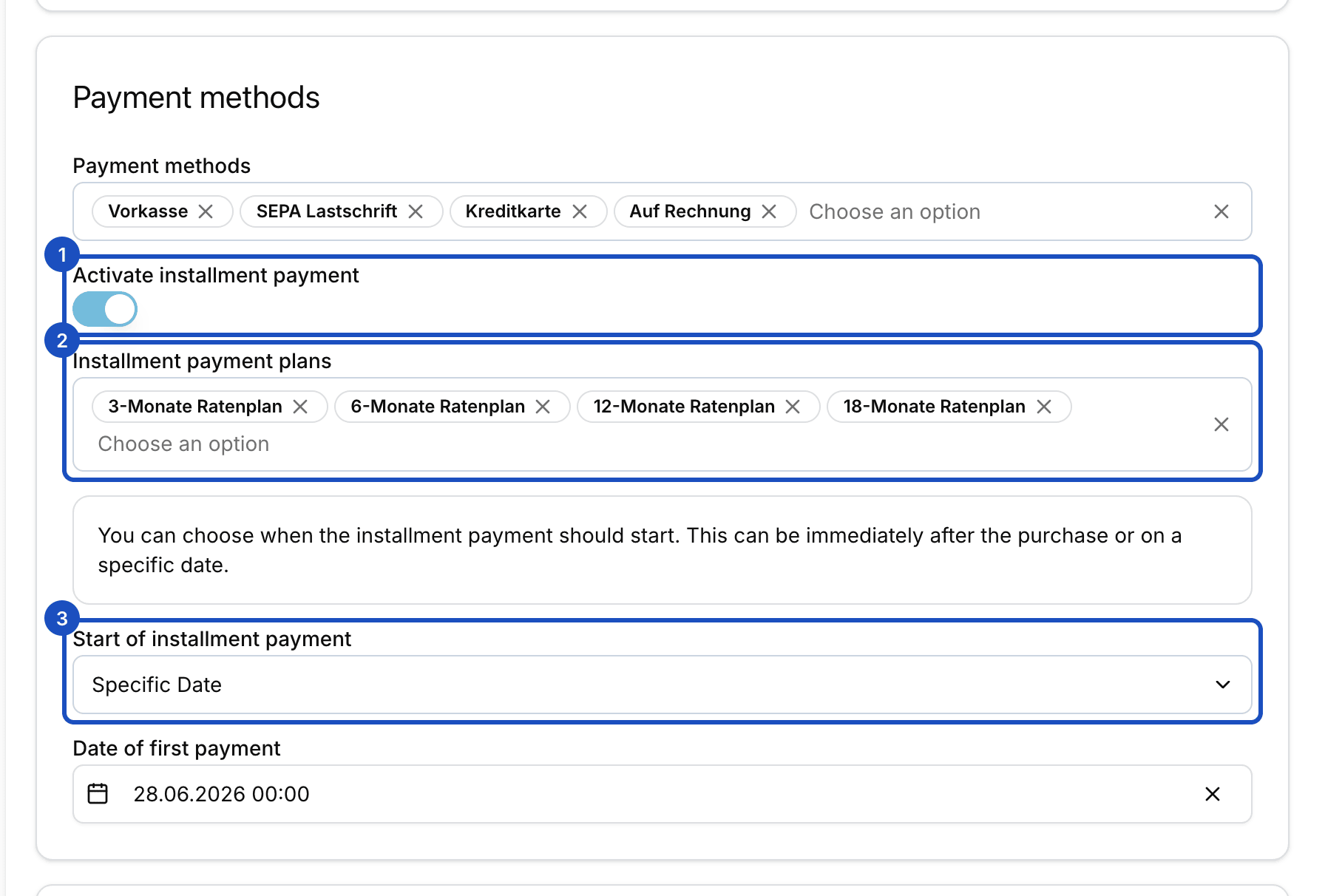
You set the plans and the start per event. Save
Click Save. At checkout, your guest now chooses between paying at once and your plans.
Keep track of installments
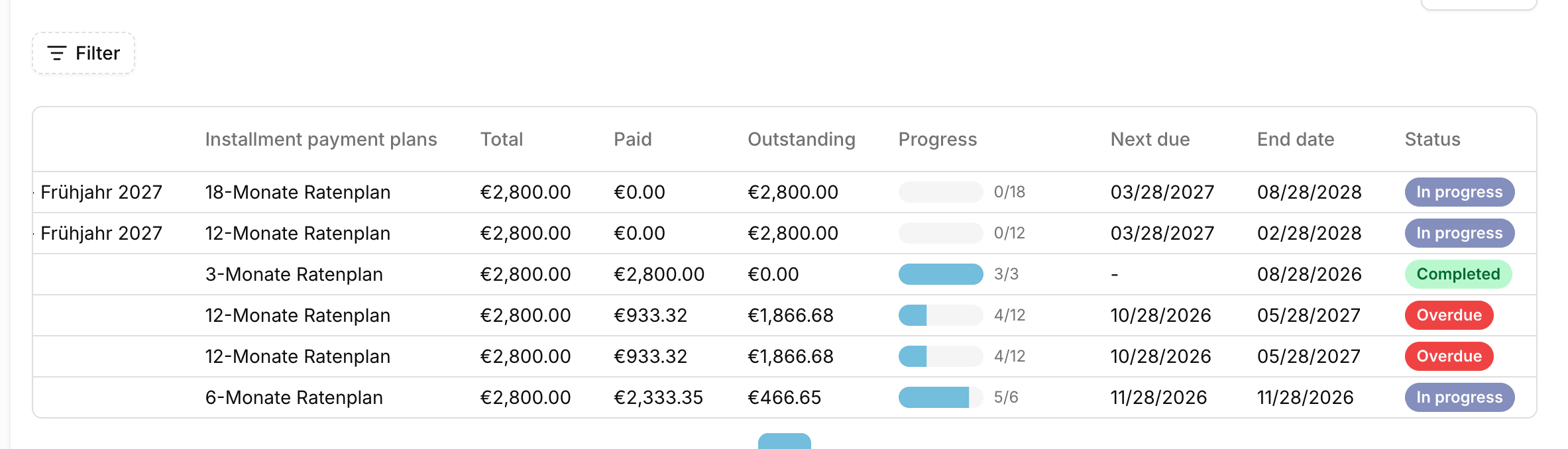
Under Finances > Installment payments you find every installment contract with customer, event, amount paid, amount outstanding and next due date. The status shows In progress, Overdue or Completed. Filter for "Overdue" to find every contract you need to look after.
Good to know
Which methods can guests use for installments?
Only methods that can charge again later: credit card, Apple Pay, Google Pay and, when switched on, SEPA direct debit and pay on account. Checkout hides other methods for installments.
What happens if an installment can't be charged?
Eventbuddy tries again after one hour, after 6 hours and after 24 hours, up to four attempts in total. If that fails, the order is marked as failed and your guest receives an email. On the order page you can charge a failed installment again with Retry.
Do guests get a reminder before each installment?
Yes. Eventbuddy sends an email three days before each installment is due.
What if the payment method already fails at purchase?
Your guest can add a new payment method on the status page of their order. If they don't and nothing has been paid yet, Eventbuddy cancels the order after 14 days and releases the tickets.