
Tickets that need your approval
How to set a ticket to need approval, review the requests and accept them or reject them with a reason.
Some tickets you don't want to sell to just anyone, for example trade visitor tickets at a fair. With approval, the guest orders and pays as usual but only gets their tickets once you have approved the order.
Set a ticket to need approval
Open the ticket
Open the event for editing and click Open on the ticket.
Switch on approval
Under Options, switch on Must be approved and save the event.
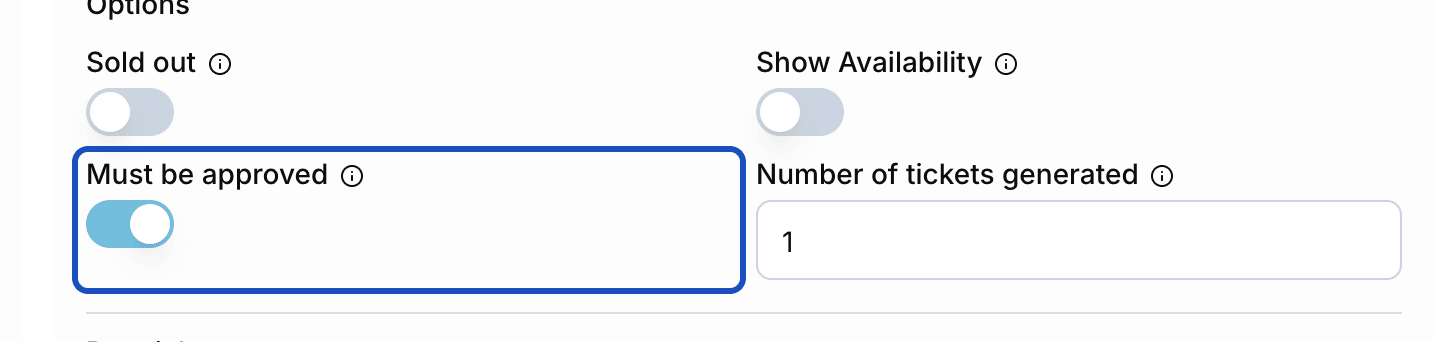
At checkout, the button now reads Order (subject to payment) & inquiries. After ordering, the guest sees the notice Waiting for approval on their order page. They can only download tickets once you have approved the order.
Review a request
Find open requests
As soon as an order is paid, the owners of your account get an email with a link to the order. You find all open requests under Orders with the Approval pending filter.
Check the order
Open the order. Look at the buyer's details and, if you use a form, the answers.
Approve or reject
Click Approve and confirm. Eventbuddy activates the tickets and emails them to the guest.
If the request doesn't fit, click Reject. Under Reason for the rejection, write why. This text goes to the guest. Click Confirm.
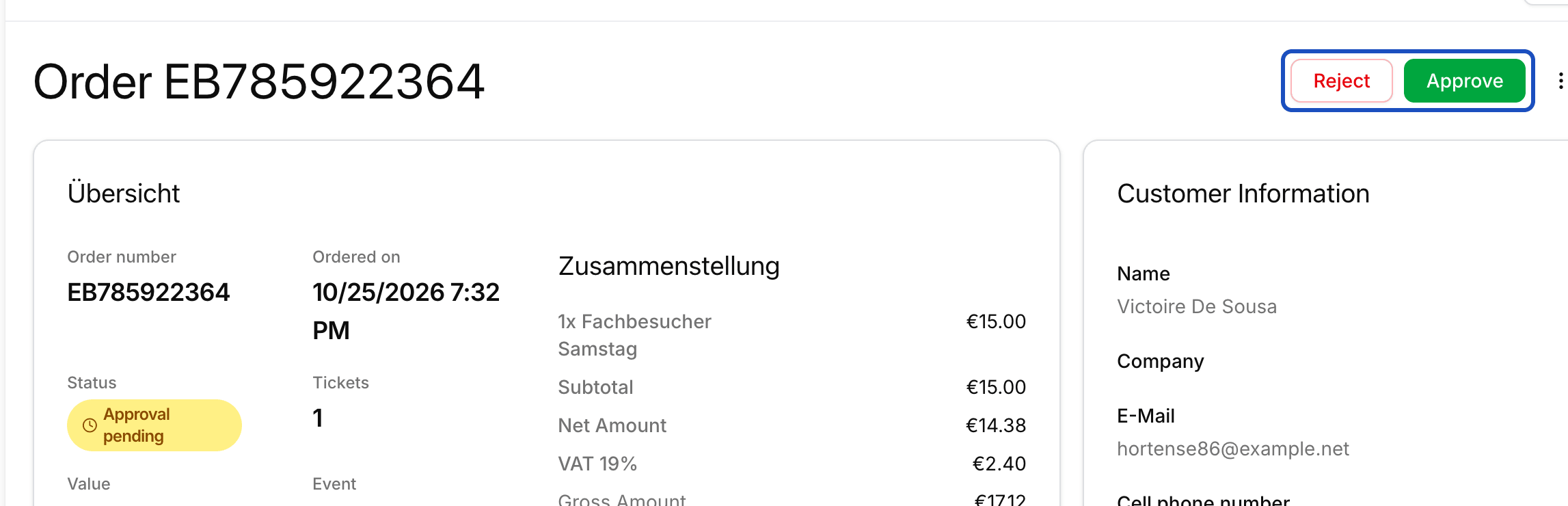
The buttons only appear while the order is waiting for approval.
Good to know
What happens to other tickets in the same order?
Approving and rejecting apply to the whole order. If someone buys a ticket that needs approval and one that doesn't, rejecting the request also rejects the other ticket.
How do I learn more about the person before I decide?
Attach a form to the event or the ticket, for example with company, job title or proof as a file. The answers are in the order before you decide.