
Find and edit orders
How to find an order, resend the tickets, change guest names or the date and keep an eye on payments.
A guest can't find their tickets, mistyped a name or wants to come on a different day. You handle all of this on the order's page.
Find an order
Open orders
In the sidebar under Sale, click Orders.
Search
In the search field, enter the order number or the name or email address of the person who ordered. The guest name on a ticket and the event title are found too.
Filter
Use + Filter to narrow the list further, for example by Status, Payment Status, Method or event.
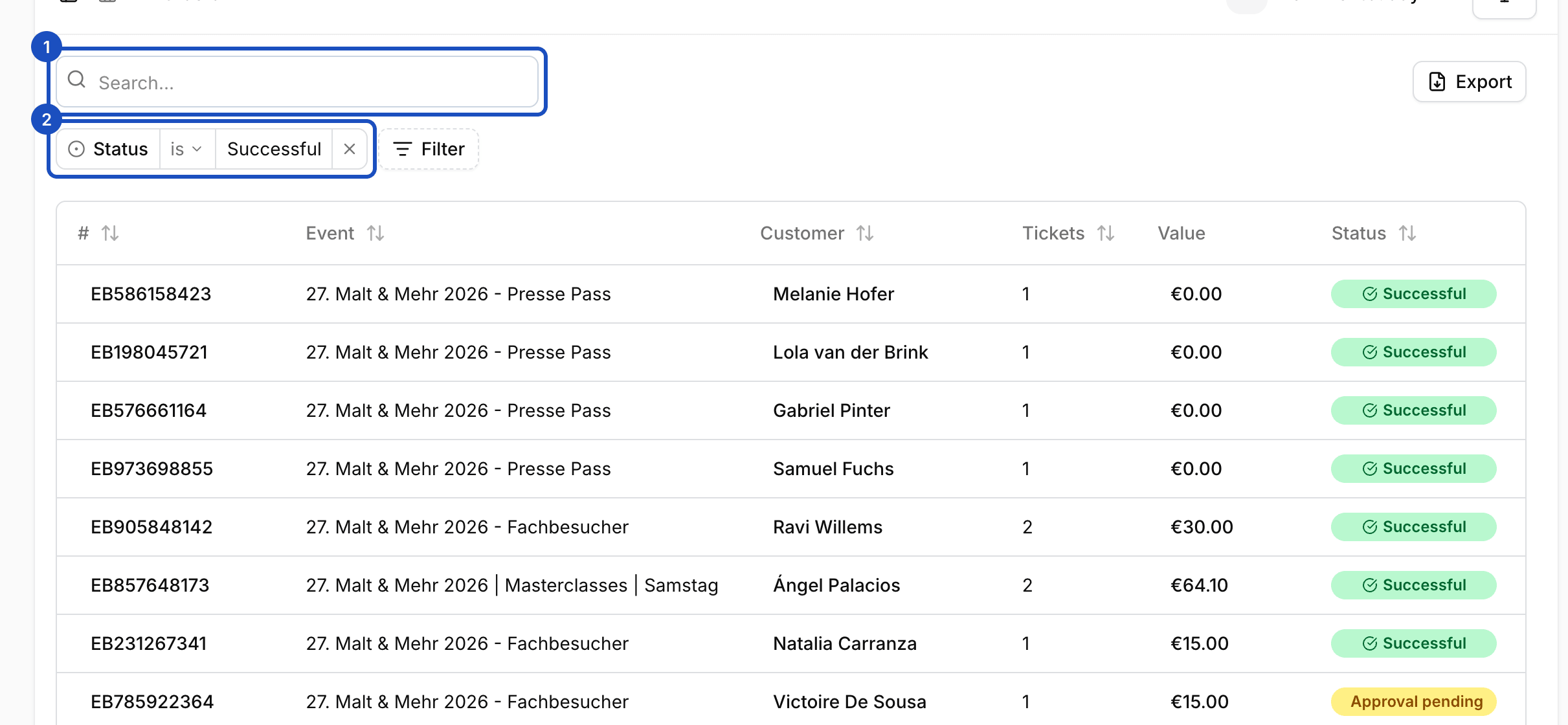
Open the order
Click a row. The order page shows the status, the customer, the breakdown with prices and fees, the tickets, the invoice and every email that was sent.
What you can do on the order page
You find most actions in the menu with the three dots at the top of the order page.
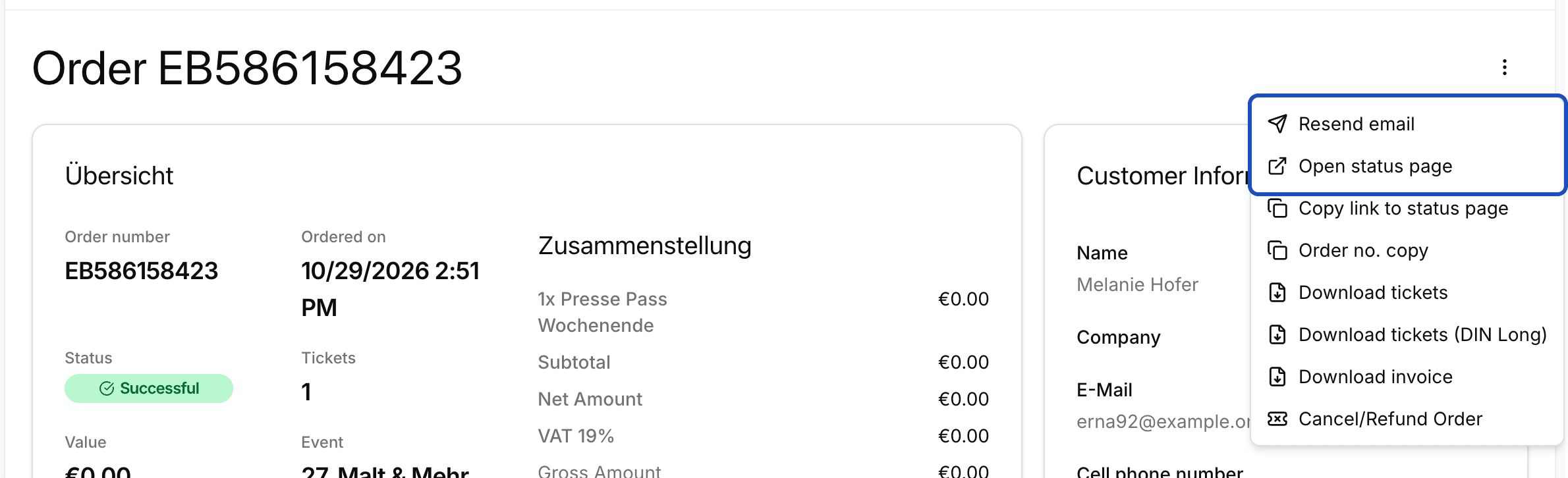
- Resend email: the guest receives the order confirmation again.
- Open status page and Copy link to status page: the status page is what your guest sees, with tickets, invoice and payment status. You can send them the link directly.
- Download tickets: all tickets as a PDF, also in DIN Long format.
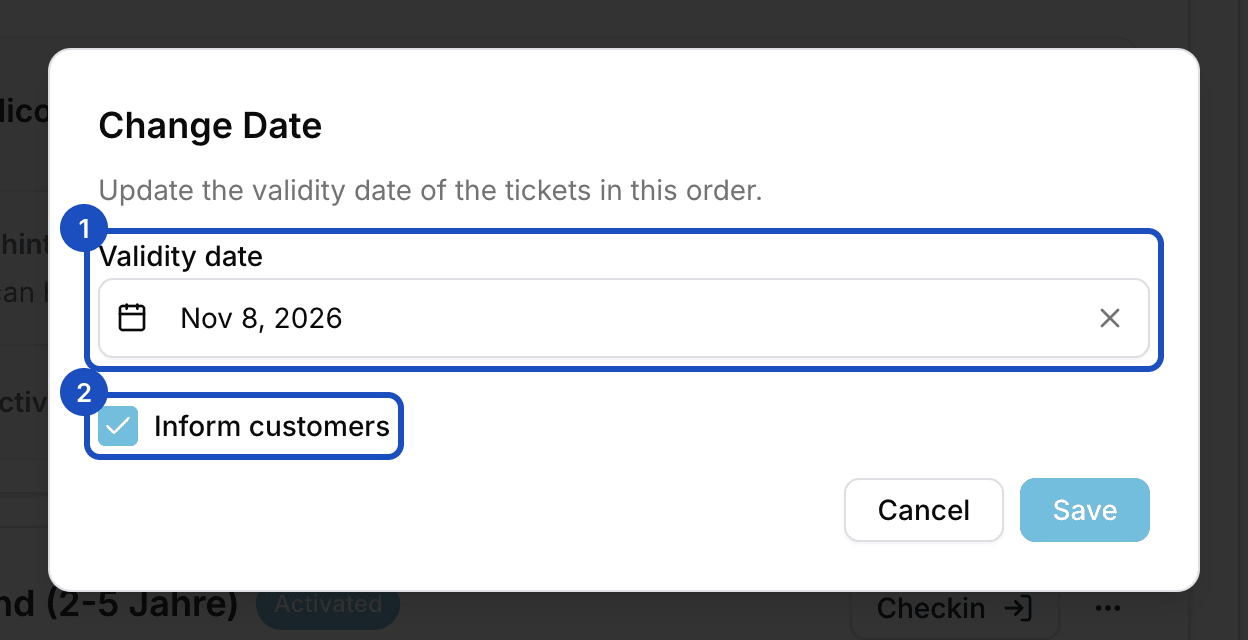
- Change Date: only for day tickets. You choose the new Validity date and whether the customer is informed.
- Order no. copy: for questions or your accounting.
Correct names and details
- Guest name on a ticket: in the Tickets section, click the name or No guest name and enter the correct name.
- Details of the person who ordered: click the customer's name on the right. On the customer page, you change address, email and company with Edit.
- Internal note: under Notes, write down what your team should know and click Save. Guests don't see notes.
Good to know
How do I see whether an order is paid?
The status at the top of the order page shows, for example, Successful, Pending or Failed. For installments, you see every installment with its due date and status further down.
Can I mark a bank transfer order as paid myself?
No. You can't mark orders as paid in the admin yourself. Mark as paid exists for invoices you write yourself.
Which emails did my guest receive?
At the bottom of the order page you find every email that was sent. Below them, Scheduled emails shows payment reminders that are still going out.